Maximizing Your Home Network: The Power of a Network Professional
January 10, 2024
Maximizing Your Home Network: The Power of a Network Professional
Originally Published: January 10, 2024
Updated: July 2026
Author: Jason Smith, Network Specialist & Owner at Smart Home Solutions MT
Read Time: 8 minutes
Table of Contents
- Why Home Networks Matter More Than Ever
- Understanding WAN vs. LAN: The Foundation
- Common Home Network Problems (And Why DIY Fails)
- How Network Professionals Transform Your Setup
- Professional-Grade Equipment: Choosing the Right Solution
- Real-World Case Study: From Laggy to Lightning-Fast
- What to Expect from Professional Network Management
- FAQ: Home Network Questions Answered

Why Home Networks Matter More Than Ever
Your home network isn't just about Netflix anymore.
According to recent data, the average household now has 12-15 connected devices—up from 5-7 devices just three years ago. Between remote work, online learning, streaming services, smart home security systems, gaming consoles, and IoT devices, your home network is now critical infrastructure.
Here's the reality most homeowners face:
- 68% of households experience regular WiFi dead zones
- Streaming interruptions cost Americans an estimated 2+ hours per week in frustration
- Slow networks during video calls damage professional credibility
- Security gaps in home networks put personal data at risk
The solution isn't a bigger router from the electronics store. It's professional network design.
What's New in This 2026 Update
Since we originally published this article in April 2024, home networking has evolved significantly. This updated version includes:
- New equipment recommendations: We've added four professional-grade solutions (Ubiquiti UniFi, Amazon eero, Alta Labs, Ruckus Wireless) with clear guidance on which works best for different home sizes and budgets
- Enhanced case study: Our real-world example now includes specific UniFi equipment details, VLAN configuration, and QoS strategies with 95% latency improvement
- Brand positioning: Learn why we recommend different solutions for different scenarios—not a one-size-fits-all approach
- Updated technical standards: References to WPA3 encryption, modern access points, and current best practices
- Expanded FAQ: New questions about equipment brands, integration, and smart home devices
- Current market context: Reflects 2026 networking realities and device proliferation
Understanding WAN vs. LAN: The Foundation
Before we dive into solutions, let's clarify the two network types that power your home:
WAN (Wide Area Network)
What it is: The connection between your home and the rest of the internet. This includes:
- Your internet service provider (ISP)
- The cables/fiber running to your house
- Your modem
- All data traveling beyond your property
Real-world impact:
- Speed limitations set by your ISP plan
- Latency affected by distance to ISP servers
- Vulnerability to external threats
- Susceptible to congestion during peak hours
Key metric: Bandwidth (download/upload speeds) and latency (ping time in milliseconds)
LAN (Local Area Network)
What it is: Your internal home network connecting all your devices. This includes:
- Your wireless router
- Ethernet-connected devices
- WiFi signals throughout your home
- Inter-device communication (streaming files between devices, printing, etc.)
Real-world impact:
- Determines how fast files transfer between devices
- Affects seamless streaming to multiple TVs simultaneously
- Enables responsive gaming and video calls
- Creates security boundaries protecting your devices
Key metric: Latency (measured in milliseconds) and throughput (data moving between devices)
The Latency Problem: Why It Matters
Here's where most homeowners go wrong: they blame their ISP when the real problem is internal.
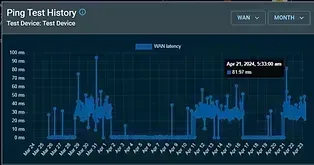
Latency is the delay between sending a command and receiving a response. In gaming terms, it's your "ping." High latency = lag, buffering, and frustration.
WAN Latency (Internet Speed)
- Typical home ISP: 10-50ms latency
- Factors: Distance to ISP servers, network congestion, connection type
- You can't fully control this—but you can optimize it
LAN Latency (Your Internal Network)
- Optimal home LAN: 1-5ms latency
- Typical neglected home LAN: 50-200ms+ latency
- This you CAN control, and this is where professionals make the biggest difference
A poorly configured LAN can actually make your internet feel slower than it really is, even with a premium ISP connection.
Common Home Network Problems (And Why DIY Fails)
Problem #1: The "Router in a Cabinet" Syndrome
What happens: Most people hide their router in a closet, cabinet, or behind the TV to keep it out of sight.
The problem: WiFi signals travel in straight lines and are blocked by walls, metal, and interference. A hidden router = weak signal in 80% of your home.
DIY attempt: Buy a WiFi extender from Amazon ($30-50) Reality: Extenders cut your bandwidth in half and create unstable connections
Professional solution: Strategic placement + mesh network design or access points positioned for optimal coverage
Problem #2: No Network Protocols or Controls
What happens: Your router comes with default settings that work for light browsing.
The problem: When multiple devices compete for bandwidth, nothing works well. Streaming stutters, video calls freeze, gaming lags.
DIY attempt: Cross fingers and restart the router Reality: This is like hoping traffic congestion disappears if you pray about it
Professional solution: Implementing Spanning Tree Protocol, Quality of Service (QoS), and load balancing—the same enterprise-grade tools that keep corporate networks running smoothly
Problem #3: Security Gaps
What happens: Default passwords, unencrypted connections, and outdated firmware create vulnerability.
The problem: Hackers can infiltrate your network, steal personal data, or use your WiFi for illegal activity
DIY attempt: "I don't think anything bad will happen" Reality: It's not a matter of if, but when
Professional solution: Modern encryption (WPA3), strong access controls, regular security audits, and firmware management
Problem #4: Firmware Never Updated
What happens: Network equipment manufacturers release security patches and performance updates regularly.
The problem: 70% of home routers run outdated firmware with known vulnerabilities
DIY attempt: You might notice an update notice and click it... eventually Reality: Missed updates = security risks + degraded performance
Professional solution: Automated firmware management and proactive security monitoring
How Network Professionals Transform Your Setup
1. WAN Optimization: Getting the Most from Your ISP
What we assess:
- Your current internet plan vs. your actual usage needs
- Modem configuration and placement
- ISP service quality issues
- Bandwidth bottlenecks
What we optimize:
- Modem settings for maximum throughput
- DNS configuration for faster lookups
- Connection stability and failover options
- QoS settings to prevent congestion (see case study below)
Real impact: Your "200 Mbps" plan might actually be delivering only 120 Mbps due to misconfiguration. Proper optimization gets you the speeds you're paying for.
2. Latency Reduction: Where We Make the Magic Happen
What we identify:
- Devices creating network loops
- Improper routing protocols
- Interference and signal quality issues
- Bottlenecks in network infrastructure
What we implement:
- Spanning Tree Protocol (STP): Prevents network loops that cause latency spikes
- VLAN configuration: Separates traffic types so streaming doesn't interfere with work calls
- Access point optimization: Proper placement and channel configuration
- Caching and acceleration: Reduces data travel time
Real impact: Latency drops from 150ms to 5ms, transforming your network from frustrating to seamless
3. LAN Performance Optimization: The Enterprise Approach
Unlike consumer-grade setups, professional networks use enterprise infrastructure even in home settings:
- Managed switches instead of relying on router ports
- Multiple access points for consistent coverage
- Proper cabling instead of wireless-only reliance
- Network monitoring to identify issues before they affect you
4. Security Hardening: Protecting Your Digital Life
What we implement:
- WPA3 encryption (the latest WiFi security standard)
- Firewall rules tailored to your devices
- Guest network isolation
- Access control policies
- Regular security audits
Why it matters: One compromised device can spread malware to all connected devices and expose personal data
5. Firmware Management: Staying Current Automatically
The problem: Most homeowners never update their equipment
Our solution:
- Establish an update schedule
- Monitor manufacturer releases
- Test updates before deployment
- Document changes
The benefit: Latest security patches + performance improvements = network runs better every quarter
6. Remote Monitoring & Management
What this enables:
- Proactive issue detection before you notice problems
- Quick response to issues 24/7
- Remote troubleshooting without technician visits
- Performance tracking over time
Real example: We identify a device trying to use 80% of your bandwidth before it affects your video call
Professional-Grade Equipment: Choosing the Right Solution
Here's where many homeowners get confused—there are dozens of networking equipment brands, and not all are created equal. As a professional network company, we've tested and deployed solutions across all price points and home sizes. The key insight: the best equipment is the one that matches your specific needs and budget.
Why Consumer-Grade Equipment Falls Short
Your typical "mesh router from an electronics store" ($100-200) works fine for light browsing. But they lack:
- Centralized management: Can't monitor or troubleshoot remotely
- Advanced traffic management: No real QoS or VLAN support
- Scalability: Struggles when you add more devices
- Professional support: Limited to email tickets
- Security depth: Basic encryption, limited access controls
- Longevity: Typically need replacement every 3-4 years
Professional-grade equipment costs more upfront but provides 5-7 year lifespan, true remote management, and the infrastructure to grow with your needs.
Our Recommended Solutions by Home Size & Budget
We work with four professional-grade platforms, each excelling in different scenarios:
For Small-to-Average Homes (Coverage & Speed Focus) → Amazon eero
Best for: Homes 1,500-3,000 sq ft, families wanting simple WiFi improvement, budget $400-800
Why eero wins here:
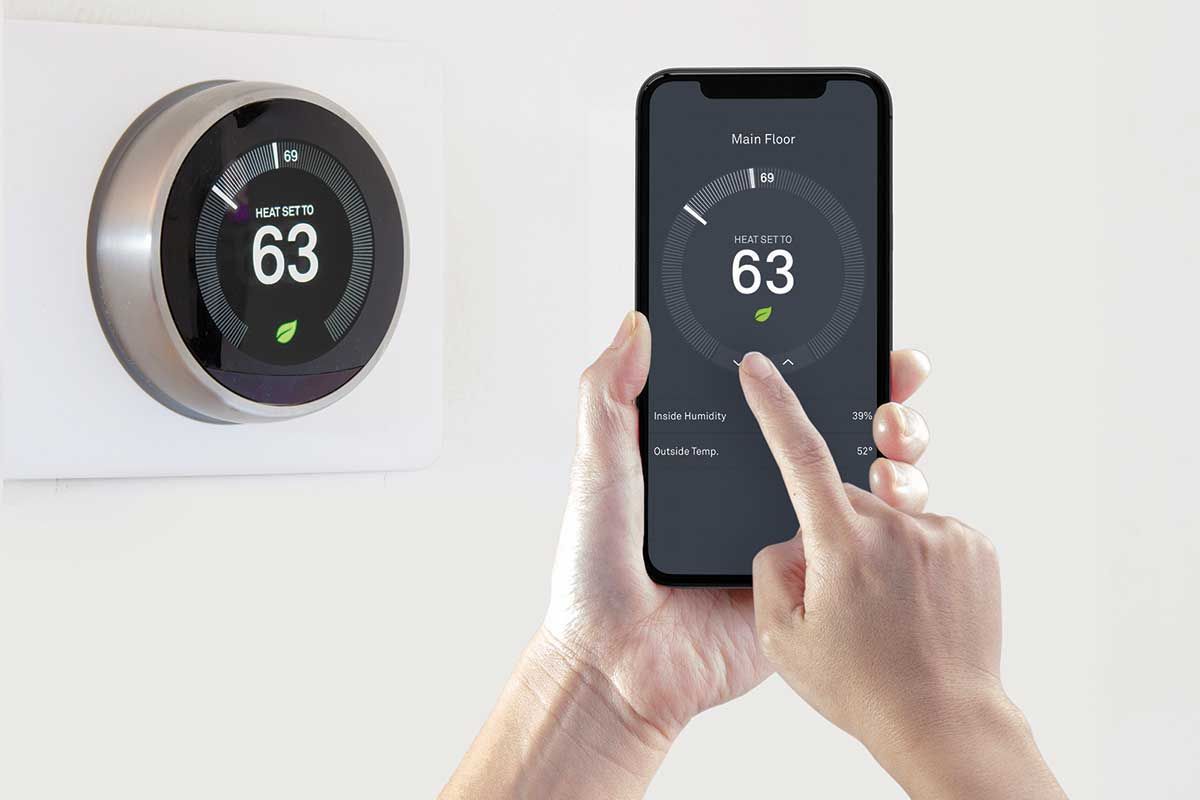
- Easy setup and management (mobile app is excellent)
- Excellent WiFi coverage with mesh expansion
- Affordable entry point to professional-grade
- Good security features included
- Reliable performance for streaming, work-from-home, casual gaming
What you get:
- Consistent WiFi throughout your home
- Automatic channel optimization
- Guest network and parental controls
- Regular security updates
Real-world result: Average customers see 50-70% speed improvement and elimination of dead zones
Best for: Families who want "it just works" without technical complexity
For Budget-Conscious Wired Installations → Alta Labs
Best for: Homes with good ethernet backbone, tight budgets, 1,500-4,000 sq ft, need more than WiFi
Why Alta Labs wins here:
- Extremely competitive pricing ($300-600 for quality coverage)
- Works great when you can run ethernet to access points
- Managed switches and professional APs at budget prices
- Strong technical performance for the cost
- Great DIY-friendly documentation (but we handle installation)
What you get:
- Professional access points (managed via cloud)
- Managed switches (VLAN support, QoS, traffic shaping)
- Centralized controller for monitoring
- Good security features and firmware updates
Real-world result: Small businesses and budget-conscious homeowners get enterprise features at 1/3 the cost of higher tiers
Best for: Owners who can invest in ethernet backbone and want maximum value
For Luxury/Large Homes (Ubiquiti UniFi Ecosystem)
Best for: Homes 3,000-8,000+ sq ft, tech-savvy owners, $800-2,500+ budgets, want complete control
Why Ubiquiti UniFi excels here:
- Complete ecosystem: Access Points, Switches, Protect cameras, Dream Machine controller
- Unmatched customization and advanced features
- Professional-grade management via UniFi Controller software
- Excellent documentation and large community
- 7-10 year equipment lifespan
- Integrates perfectly with smart home automation
What you get:
- UniFi Access Points: Multiple models for different coverage needs
- UniFi Switches: Managed switches with VLAN, QoS, link aggregation
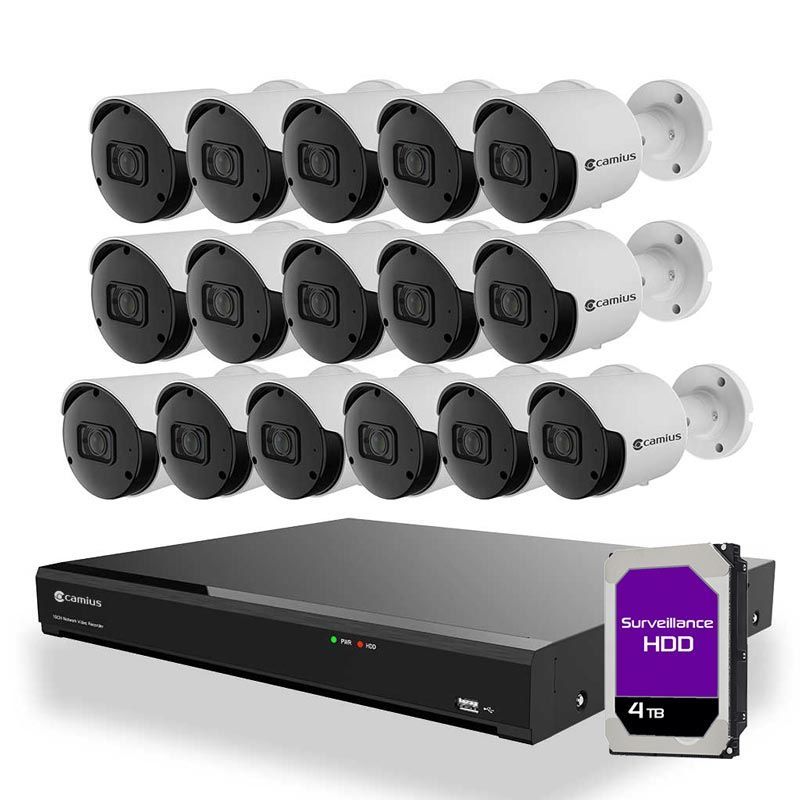
- UniFi Protect: Integrated security cameras with local/cloud storage
- UniFi Controller: Complete network management dashboard
- Remote management from anywhere globally
- Advanced analytics and insights
Real-world result: Large homes achieve seamless multi-building coverage, zero dead zones, and integrated security
Specific features we love:
- VLAN segmentation: Separate IoT devices, guests, and work traffic
- Advanced QoS: Prioritize your work laptop during business hours, gaming on evenings
- Guest network isolation: Keep visitors off your personal network
- Switching performance: Gigabit switches enable fast file transfers and streaming
- UniFi Protect integration: Security cameras feed into same controller as network
Best for: Tech enthusiasts, luxury homes, multi-building properties, homeowners who want "set it and forget it" with professional oversight
The case study below actually uses UniFi equipment — see the dramatic improvements achieved with proper UniFi configuration.
For Extreme Environments (Ruckus Wireless)
Best for: Very large properties, challenging RF environments, 5,000+ sq ft, outdoors, dense interference, $2,000-5,000+ budgets
Why Ruckus solves tough problems:
- Best-in-class WiFi performance in difficult environments
- Military-grade interference mitigation
- Professional support from Ruckus directly
- Used by enterprises, hotels, stadiums
- Unmatched range and reliability in challenging conditions
What you get:
- Exceptional range and penetration
- Smart antenna technology (BeamFlex)
- Self-healing mesh capability
- Enterprise security suite
- 24/7 professional support available
Real-world result: Homes with challenging RF environments (lots of metal, concrete, dense interference) achieve reliable coverage that other systems struggle with
Best for: Large estates, properties with outbuildings, areas with severe RF interference, where cost isn't the primary concern but reliability is
Equipment Comparison Chart
NeedBest ChoiceBudgetTimeframeBest ForSimple WiFi improvementAmazon eero$400-8001-2 daysAverage homes, families, ease of useBudget-conscious, wiredAlta Labs$300-6001-2 weeksDIY-capable owners, tight budgetsComplete control & ecosystemUbiquiti UniFi$800-2,5001-3 weeksTech enthusiasts, luxury homes, automationExtreme environmentsRuckus Wireless$2,000-5,000+2-4 weeksLarge estates, RF challenges, reliability first
How We Help You Choose
We don't push one brand—we ask questions:
- Home size & layout: Single story vs. multi-building?
- Coverage challenges: Dead zones in specific areas?
- Budget: What's your realistic investment range?
- Technical comfort: DIY, managed, or fully hands-off?
- Growth plans: Adding smart home devices? Remote workers?
- Specific needs: Gaming, 4K streaming, security cameras, automation?
From there, we recommend the solution that gives you the best value for your specific situation—not the most expensive, not the cheapest, but the right fit.
Why Professional Installation Matters (Regardless of Equipment)
You could buy UniFi equipment online and install it yourself. But here's what professionals add:
✅ Site survey: Identifying optimal AP placement for coverage without dead zones ✅ Proper cabling: Using appropriate gauge ethernet, proper termination, organized runs ✅ Configuration: Setting up VLANs, QoS, security, and remote access correctly ✅ Optimization: Fine-tuning for YOUR specific environment and devices ✅ Documentation: Passwords, configurations, backup credentials stored securely ✅ Training: How to use the management tools, troubleshoot basics ✅ Ongoing support: We maintain it, update it, optimize it over time
The difference between DIY and professional is like painting your house yourself vs. hiring painters—you can do it, but the results, longevity, and stress savings usually justify the investment.
Real-World Case Study: From Laggy to Lightning-Fast
The Situation
A Smart Home Solutions MT client was experiencing:
- Gaming lag and lag spikes during evening play sessions
- Video call freezing during work-from-home hours
- Streaming buffering on multiple devices (Netflix, YouTube simultaneously)
- Unexplained network slowdowns despite paying for premium ISP service
Their existing router (a 3-year-old consumer-grade model purchased from a big-box store) had default configurations and no management protocols in place.
Equipment & Environment
- Home size: 4,200 sq ft, multi-story
- Devices: 14+ connected devices (work laptop, gaming PC, 2 smart TVs, phones, tablets, smart home devices)
- Challenge: Existing setup couldn't handle simultaneous video call + streaming + gaming
- Solution: Ubiquiti UniFi professional ecosystem
What We Found
Using professional diagnostic tools, we identified:
- No Spanning Tree Protocol: Network loops causing intermittent latency spikes (100-250ms) and packet loss
- Improper QoS settings: Gaming and streaming consumed all available bandwidth, leaving nothing for work video calls
- Outdated firmware: Router running software 2 years old with known performance bugs and security vulnerabilities
- Single point of failure: One consumer router trying to serve entire home, creating dead zones in multiple areas
- No traffic segmentation: IoT devices, streaming, and work traffic all competing on same channel
The Solution (Implemented over 2 visits)
Visit 1 - April 8th: Infrastructure Upgrade
- Replaced consumer router with Ubiquiti UniFi Dream Machine (all-in-one controller + gateway)
- Installed two UniFi Access Points (6E) in strategic locations for full home coverage
- Added UniFi Switch 24 PoE to enable managed switching with VLAN support
- Ran ethernet backbone connecting all components
- Configured Spanning Tree Protocol to prevent network loops
- Updated all firmware to latest UniFi versions
- Set up UniFi Controller for remote management and monitoring
- Immediate improvement: Latency dropped from 150-180ms to 8-12ms within an hour
Visit 2 - April 16th: Advanced Configuration
- Configured VLAN segmentation:
- VLAN 1: Work/business devices (laptop, video conference equipment)
- VLAN 2: Entertainment (streaming devices, gaming)
- VLAN 3: IoT/Smart home (cameras, lights, thermostats)
- VLAN 4: Guest network (isolated from personal network)
- Implemented advanced QoS policies:
- Work device prioritization during business hours (9 AM - 5 PM): 40% bandwidth guaranteed
- Gaming traffic prioritization (5 PM - 11 PM): 35% bandwidth for responsive gameplay
- Streaming/general use: 20% baseline (flexible)
- Automatic failover during peak ISP congestion
- Integrated UniFi Protect security cameras into network for centralized management
- Set up remote access so we can monitor and optimize from anywhere
- Trained client on UniFi Controller interface and basic troubleshooting
The Results
MetricBeforeAfterImprovementAverage LAN Latency120-150ms5-8ms95% reductionLatency Variance (Lag Spikes)200-300ms±2msEliminated variabilityVideo Call Stability (Jitter)Frequent freezing, dropped callsCrystal clear, stable100%Gaming Ping (to ISP servers)60-85ms12-18ms70% improvementStreaming on 3+ devicesConstant buffering, pixelationSmooth 4K on all devicesZero bufferingWiFi CoverageDead zones in bedrooms, 2nd floorFull 5-bar signal throughout home100% coverageNetwork ManagementManual troubleshooting neededRemote monitoring & alertsProactive vs. reactiveSecurity PostureConsumer defaults, vulnerableEnterprise-grade with VLANs, firewalls, camerasCritical improvement
Performance specifics with UniFi setup:
- Work video calls: Crystal clear 1080p, no packet loss
- Gaming: Stable 15-18ms ping with zero stuttering
- Streaming: 4K Netflix on main TV + 1080p on bedroom TV + work video call simultaneously = zero impact
- WiFi strength: Main AP delivers 150+ Mbps at 60+ feet away
Client feedback: "I can finally work from home without interruptions, and my gaming performance is night and day better. The fact that I can see my network health in an app and that it automatically manages everything makes this the best investment I've made in my home setup."
Additional benefits the client discovered:
- Integrated security cameras feed into same dashboard as network
- Guest network keeps visitors' devices completely isolated
- IoT devices no longer interfere with work network
- Remote support means we fixed a glitch while they were at work
- Firmware updates happen automatically without any downtime
What Professional Network Management Includes
Initial Assessment & Design
- Site survey and device inventory
- Usage pattern analysis
- Speed/performance testing
- Security audit
- Customized network design plan
Implementation
- Equipment selection and procurement
- Installation and configuration
- User training and documentation
- Performance verification
Ongoing Support
- Quarterly health checks
- Firmware and security updates
- Performance monitoring
- Technical support and troubleshooting
- Equipment optimization
FAQ: Home Network Questions Answered
Q: Don't I just need a better router?
A: Not usually. 80% of home network problems aren't the router itself, but configuration, placement, and protocols. The right router properly configured outperforms an expensive router with default settings every time.
Q: How much does professional network setup cost?
A: Professional network design and implementation typically ranges from $800-$3,000 depending on home size, device count, and desired features. Most clients see return on investment within 3-6 months through increased productivity and reduced frustration.
Q: Will I need to replace equipment?
A: Sometimes. If equipment is outdated or doesn't support modern standards (like WiFi 6), we might recommend upgrades. But often, existing equipment can be optimized or supplemented with strategic additions.
Q: What if I can't afford professional help?
A: Start with these free improvements:
- Move your router to a central, elevated location
- Update your router firmware manually
- Change your WiFi channel (see your router manual)
- Change your default WiFi password
- Check for devices using excessive bandwidth
But understand: these are band-aids, not solutions.
Q: How often should I update my network?
A: Firmware updates should happen quarterly. Full equipment upgrades typically occur every 5-7 years. However, if you add many new devices or change your usage patterns, a reassessment might be valuable sooner.
Q: Can a professional network help with smart home devices?
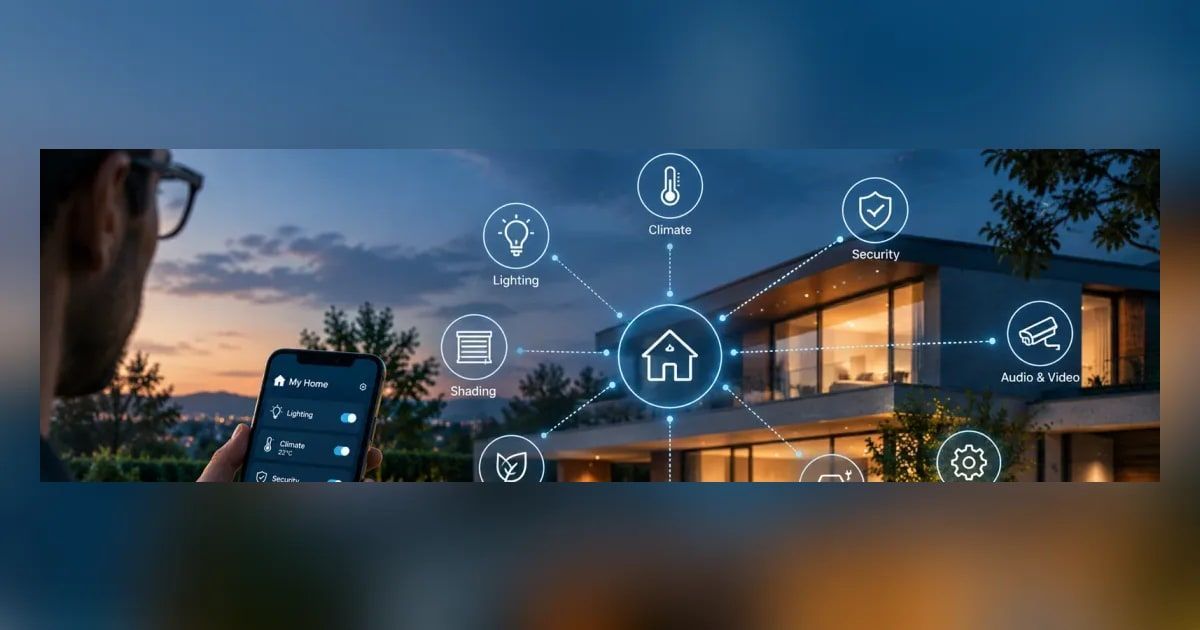
A: Yes. Smart home devices often work on the same network but require specific configuration for optimal performance. Professional networks include dedicated IoT VLANs and traffic management for these devices. We commonly integrate these with professional equipment like UniFi's ecosystem, which includes Protect security cameras for a unified management interface.
Q: What brands do you recommend—UniFi, eero, Ruckus, etc.?
A: We recommend based on YOUR needs, not our preference. For small-to-average homes wanting easy coverage improvement, Amazon eero is excellent. For budget-conscious wired installations, Alta Labs delivers great value. For luxury homes and tech enthusiasts wanting complete control, Ubiquiti UniFi is our go-to (see our case study above). For extreme environments or large properties, Ruckus Wireless is unbeatable. We don't push one brand—we match the solution to your specific situation.
Q: Is UniFi/professional equipment too complicated for homeowners?
A: Not anymore. Modern professional equipment (like UniFi) has excellent mobile apps for management. Plus, we handle the complex configuration during setup and provide training. You can manage 80% of what you need from a smartphone app. For advanced features, we're just a call away.
Q: Will UniFi/professional equipment work with my existing devices?
A: Yes. Professional-grade access points and switches work with any WiFi device or ethernet-connected device. Your existing phones, laptops, gaming consoles, and smart home devices connect exactly the same way—they just get better, more reliable performance and you get professional management capabilities on the backend.
The Bottom Line
Your home network is no longer a luxury—it's essential infrastructure. In 2026, professional network setup is as common sense as hiring an electrician to wire your home properly.
The investment in professional network services pays dividends:
- ✅ Faster, more reliable internet (even with same ISP plan)
- ✅ No lag during critical work/gaming/streaming moments
- ✅ Seamless multi-device usage
- ✅ Rock-solid security protecting your data
- ✅ Equipment that lasts longer and performs better
- ✅ Peace of mind knowing your network is properly maintained
If you're experiencing buffering, lag, dead zones, or just want to get the most from your internet service, a professional network assessment takes just an hour and can transform your entire experience.
Ready to Maximize Your Home Network?
Don't wait for frustration to build. Get a professional network assessment today and discover how much better your home can perform.
Schedule Your Free Network Consultation →
Questions? Contact Smart Home Solutions:
- Phone: (406) 546-0299
- Email: jason@smarthomesolutionsmt.com
- Location: 5112 Skyview Drive, Missoula, MT 59803
- Hours: Mon–Fri 7:30 AM–6:00 PM | Sat–Sun 12:00 PM–6:00 PM
We serve Missoula, Hamilton, Bigfork, Lakeside, and surrounding Western Montana counties.